






- Top >
- keio.jp >
- keio.jp User's Manual >
Changing Your Password
The methods for resetting your password and changing it yourself are as follows.
How to reset your password if you have forgotten it
Currently, self-service password reset is available only for students, faculty, and staff who have set up multi-factor authentication (MFA) other than SMS.
Please check this procedure for instructions on how to reset your password.
Other students, faculty, and staff (such as those who have only set up SMS authentication) cannot reset their passwords by themselves. If you have forgotten your password, please contact us via the IT Inquiry Form.
Information for Guarantors
Please check this page.
Keio University alumni
Please check this page.
Correspondence course students
Please contact us using the current students inquiry form.
How to change your password
There are two ways to access it: by logging in through the portal site after keio.jp authentication, or by accessing the URL for the account settings screen.
If you want to sign in with your keio.jp account and go to the account settings screen, please follow the steps below.
- How to change student passwords
- How to change passwords for non-students (faculty, staff, etc.)(For correspondence course students, please click here.)
Access the account settings screen directly with a URL (keio.jp authentication is required)
URL: https://keio.okta.com/enduser/settings
[Password Reset Procedure]
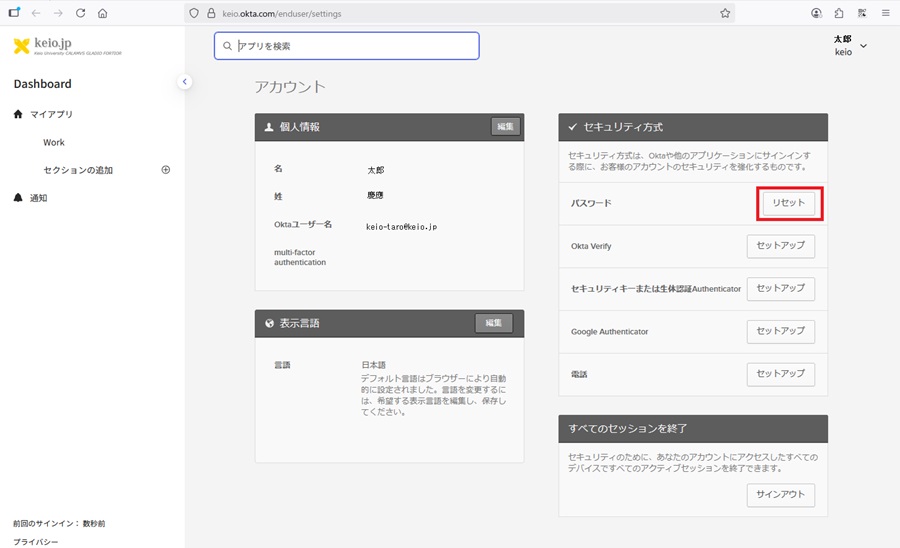
- Click "Reset" in the Security Method menu.
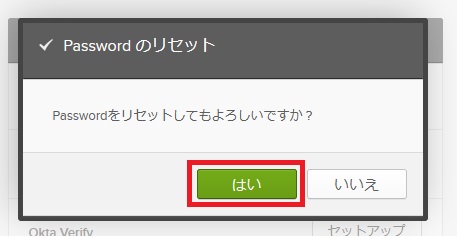
- A password reset confirmation message will appear, so please click "Yes."
- After entering "New Password" and "Re-enter Password," check "Sign me out of all other devices" (optional), and click "Reset Password."
For a description of what characters are valid for the password, see Restrictions on the Keio ID and password.
It might take a few minutes to be able to login with the reset or changed password.
Please try logging again after a while if the account is correct.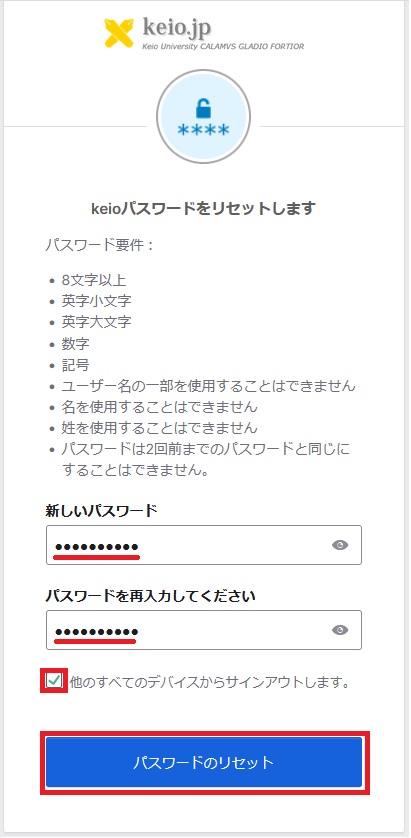
Be sure to set a complex password that is difficult to crack.
-
When a password reset is performed, an email notification with the following subject line will be sent to your Keio email address.
Email subject: Password Changed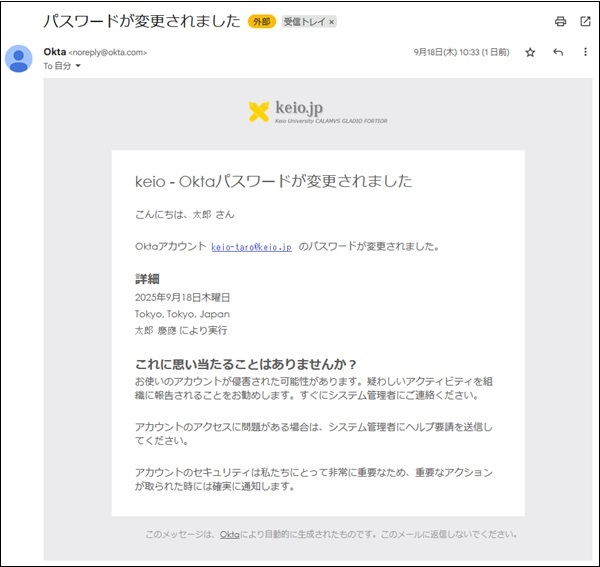
Password Reset (Only for users who have set up multi-factor authentication other than SMS)
Users who have set up multi-factor authentication other than SMS can reset their passwords.
Please access the following URL to reset your password.
・Password Reset URL
https://keio.okta.com/signin/forgot-password
-
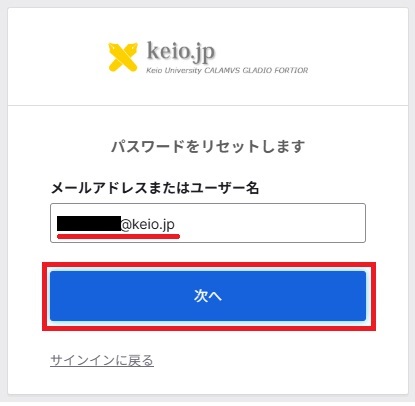
Enter your Keio ID in the email address or username field, and click "Next".
-
Left screen: The multi-factor authentication method that was successful last time will be activated (Passkey in this example), so please complete the authentication.
Right screen: If there is no cache in your browser, the multi-factor authentication selection screen will be displayed. Please "select" an available multi-factor authentication method and complete the authentication.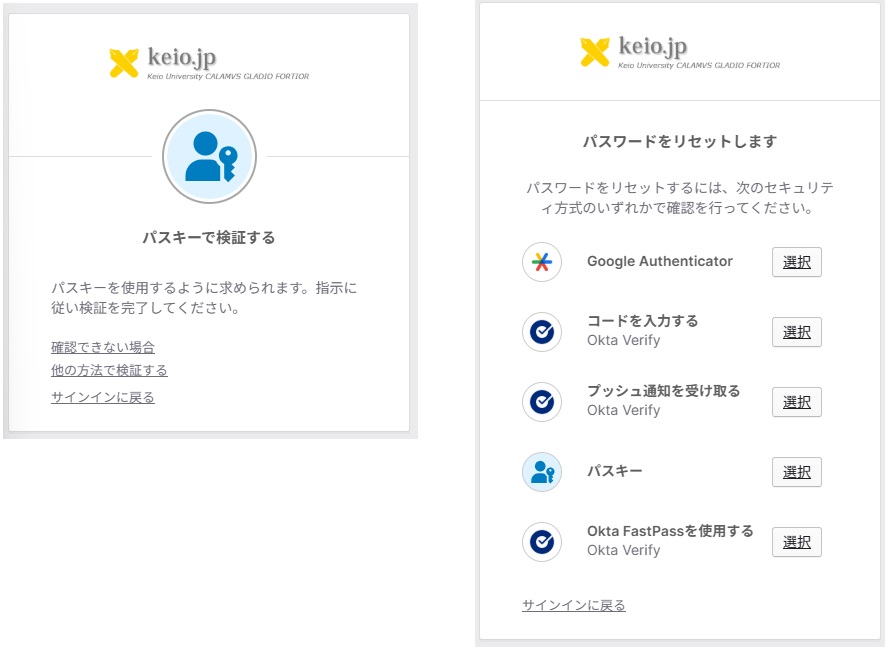
-
Once authentication is successful, enter your "New password" and "Re-enter password", check "Sign me out of all other devices" (optional), and click "Reset Password".
Regarding the characters available for the password, please refer to "Keio ID and Password Restrictions" and set a complex and hard-to-guess password.
It may take a few minutes before you can log in with your reset or changed password.
If the account you entered is correct, please wait a while and try logging in again.
-
When a password reset is performed, an email notification with the following subject line will be sent to your Keio email address.
Email subject: Password Changed
Last-Modified: June 11, 2026
The content ends at this position.