






- Top >
Password connection to keiomobile2/eduroam
Windows 11
-
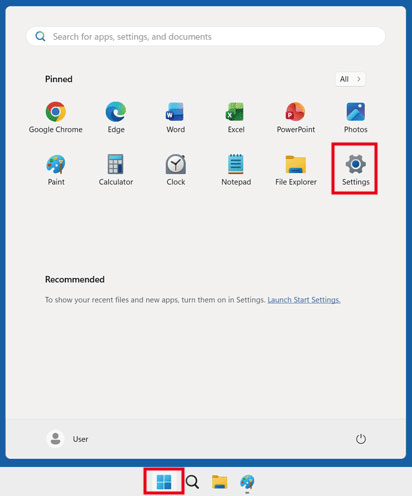
Click [Start button] and click [Settings] icon.
-
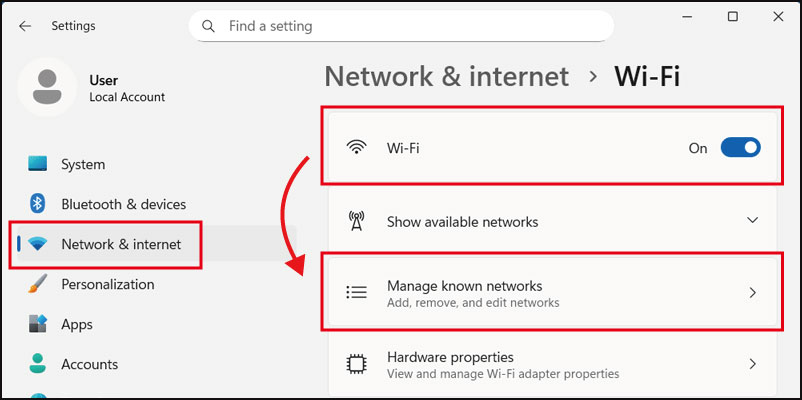
[Network & Internet] - Click [Wi-Fi], then click [Manage known networks].
-
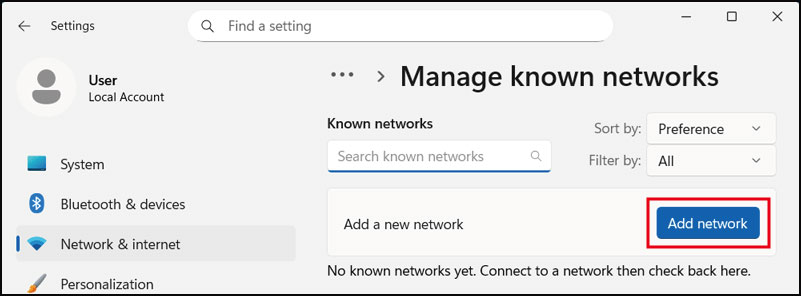
Click [Add Network].
-
To connect to keiomobile2, enter keiomobile2.
To connect to eduroam, enter eduroam.
[Security Type] - Select [WPA2-Enterprise AES]
[EPA method] - Select [Protected EAP (PEAP)]
[Authentication method] - Select [Secure Password (EAP-MSCHAP v2)]
[Your private identifier] If text has been entered, delete it.
After input and selection, scroll down.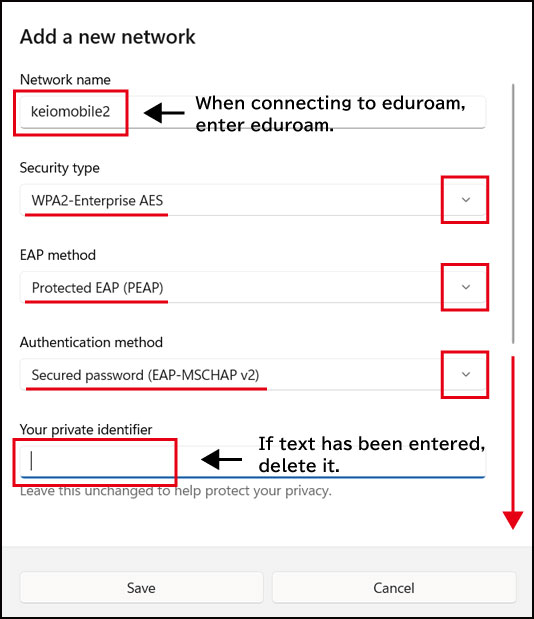
-
Click the [+] to Add trusted server name, enter wrcore2.itc.keio.ac.jp, then click [Save].
When connecting using the ITC account Wi-Fi password, enter wifi-entry.user.keio.ac.jp.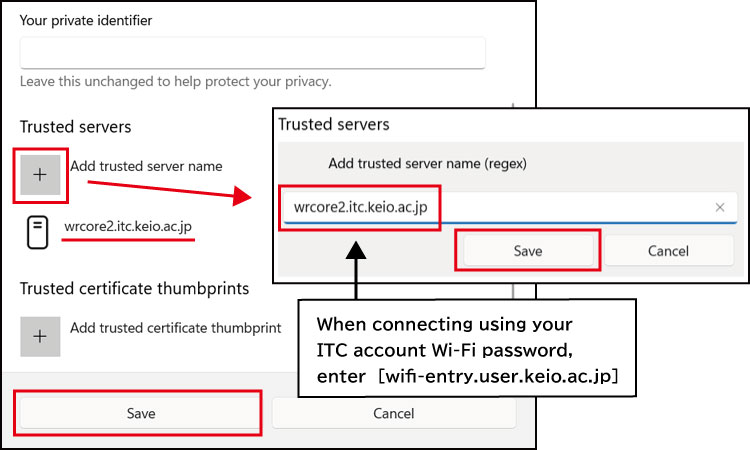
-
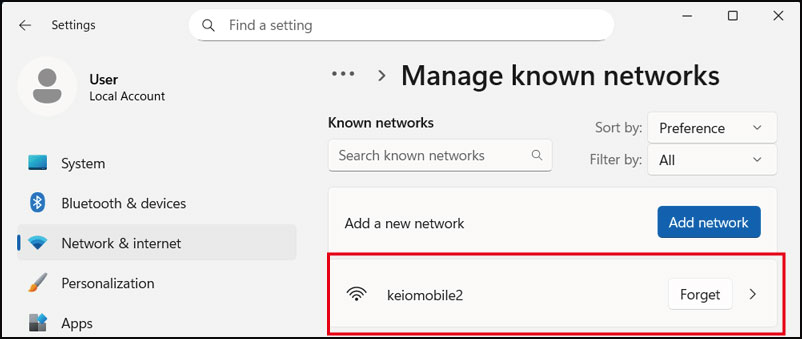
Click [keiomobile2].
-
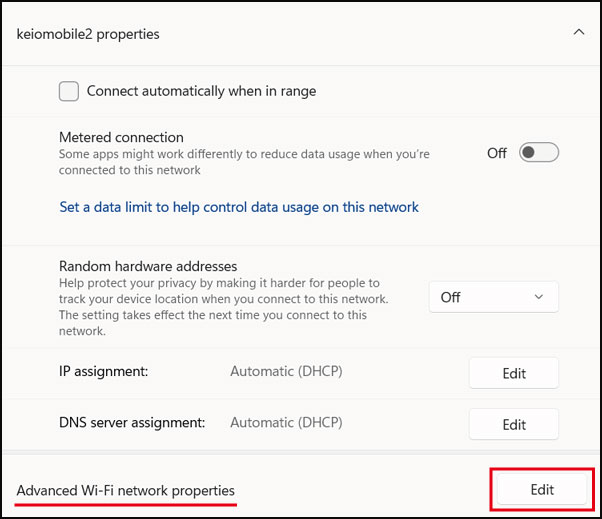
Click [Edit] in [Advanced Wi-Fi network properties].
-
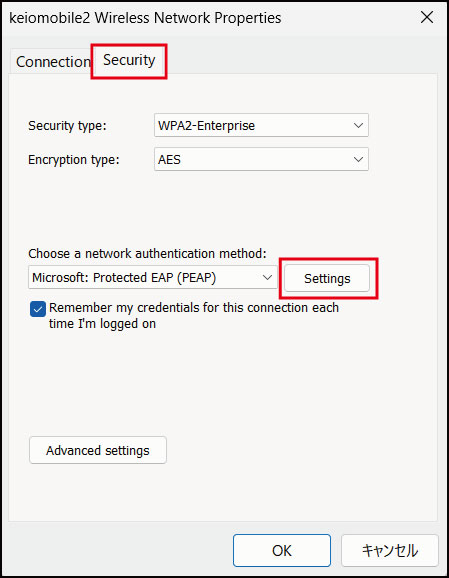
Select the [Security] tab and click [Settings].
-
Check [Trusted Root Certification Authorities] - [Security Communication RootCA2].
Uncheck [Enable ID Privacy] and click [OK].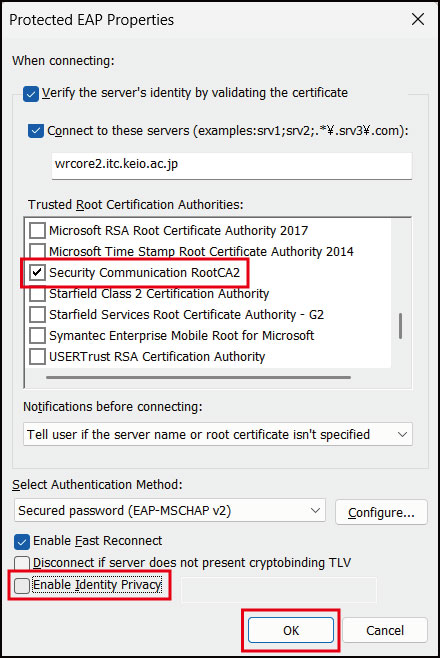
-
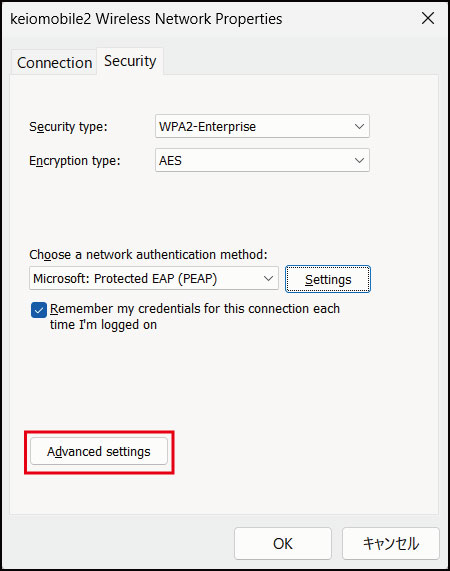
Click [Advanced settings].
-
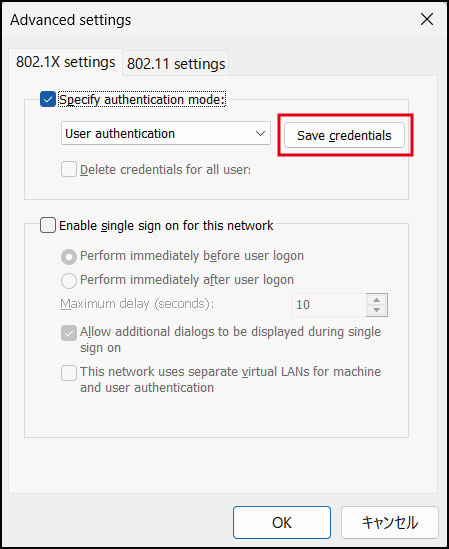
Click [Save credentials].
-
In the keio.jp (Keio ID) case, enter “Wi-Fi user name” and “Wi-Fi password”.
In the case of ITC account, enter, “your ITC account@user.keio.ac.jp” and “Wi-Fi connection password of the ITC account”.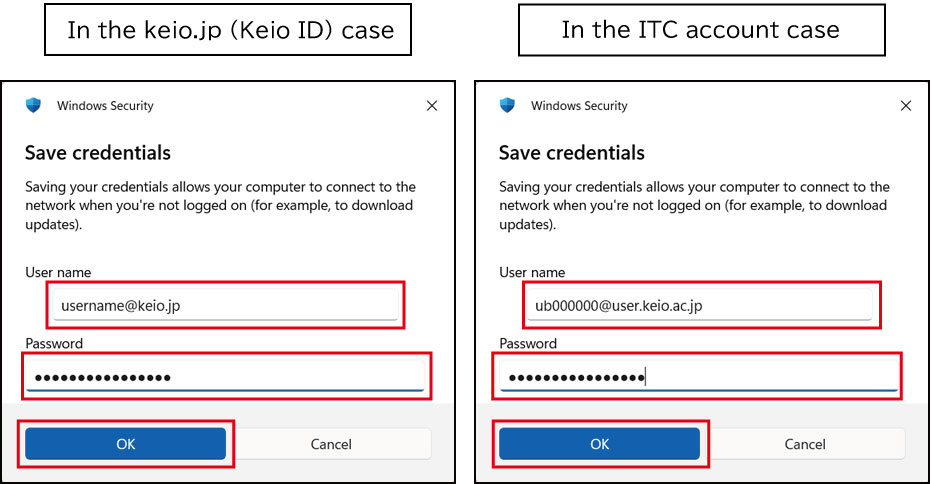
-
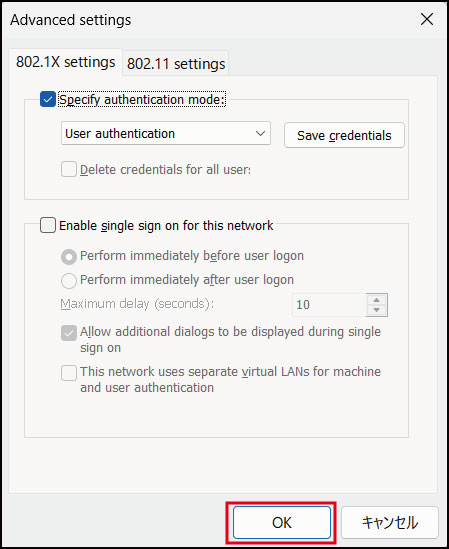
Click [OK] in Advanced settings.
-
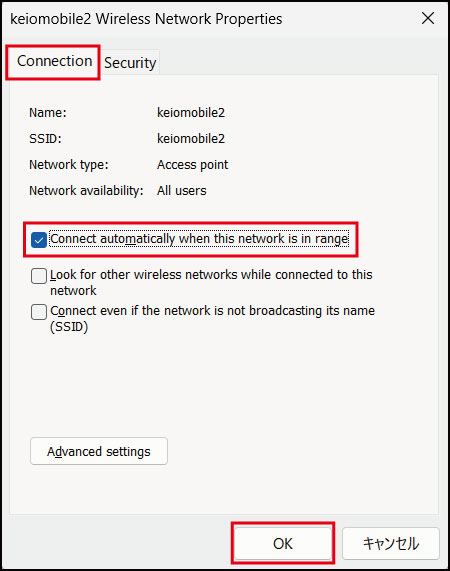
Select the [Connection] tab, check the box next to [Connect automatically when this network is in range], and click [OK].
-
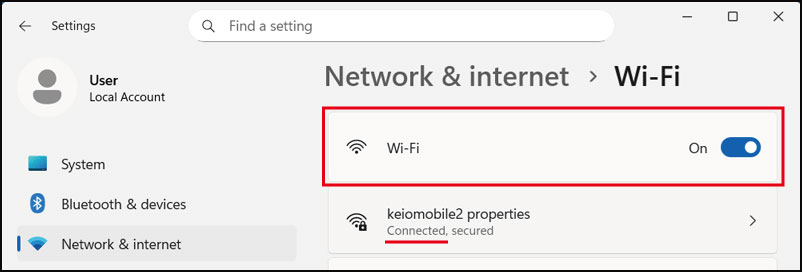
[Network & Internet] - Click [Wi-Fi], and confirm that keiomobile2 is displayed as [Connected].
If you cannot connect to [keiomobile2] after setting, delete wireless LAN profile (keiomobile2), then restart your PC and again perform [Network setup].
Procedure for revising wireless LAN connection settings
Last-Modified: March 4, 2026
The content ends at this position.